How to Install Node.js on Ubuntu 24.04: A Complete Guide
Node.js is a powerful and popular JavaScript runtime environment that allows developers to build fast, scalable, and efficient server-side applications. Whether you're building a real-time chat application, a complex API, or a dynamic website, Node.js provides the tools you need. This guide is designed to walk you through the most effective methods for installing Node.js on your Ubuntu 24.04 server, such as an ENGINYRING Virtual Server, ensuring you have a stable and flexible development environment.
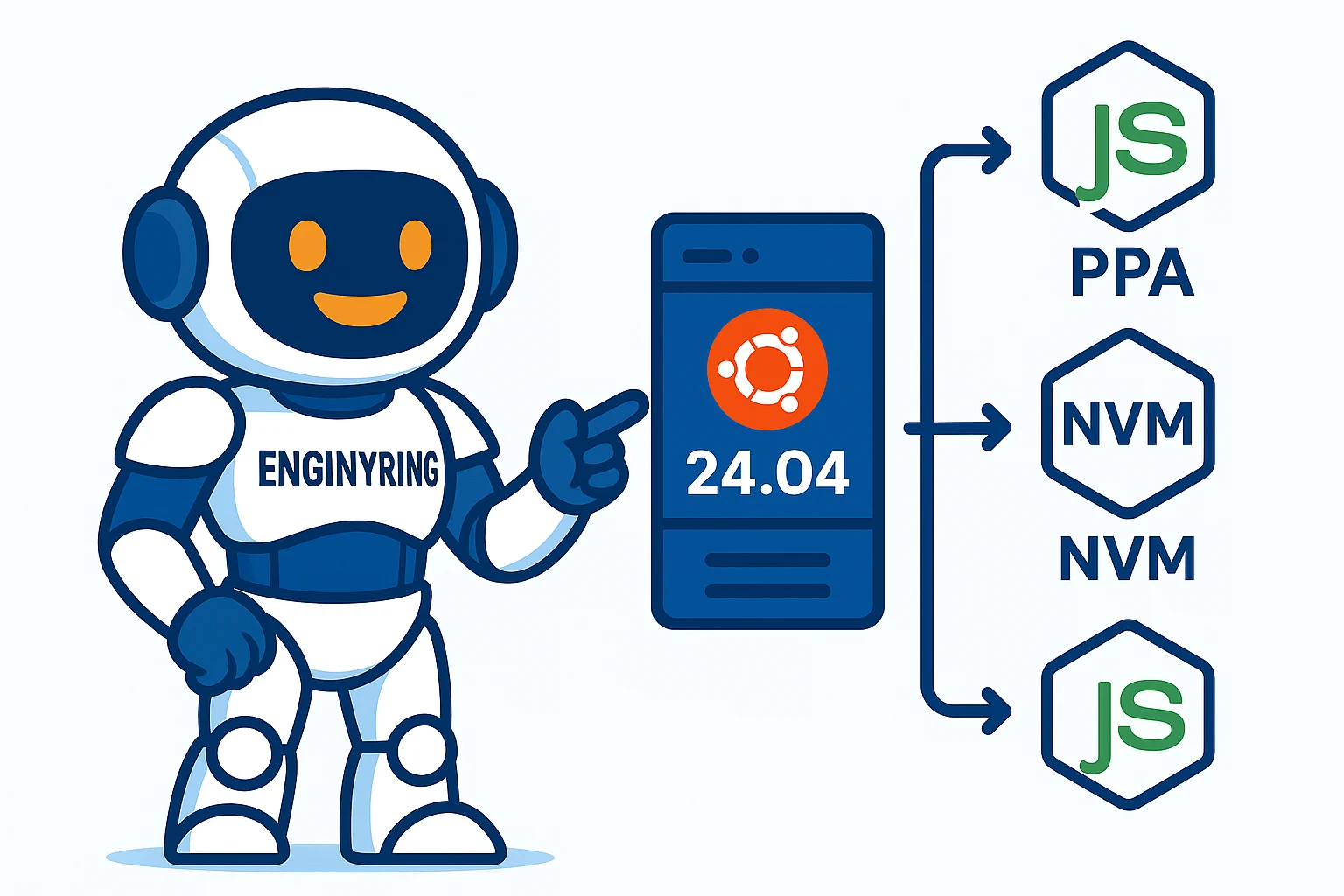
We will cover three different approaches to installation. The first uses the standard Ubuntu 24.04 repositories, which is simple and provides a recent Long-Term Support (LTS) version. The second uses a PPA (Personal Package Archive) from NodeSource to install the very latest versions of Node.js. The third and most flexible method uses NVM (Node Version Manager), which allows you to install and manage multiple versions of Node.js simultaneously. We recommend reading through all three to decide which approach best fits your project's needs.
Prerequisites
Before you begin, you will need an Ubuntu 24.04 server configured with a non-root user that has `sudo` privileges. All the steps in this tutorial can be seamlessly executed on our range of Virtual Servers. You should also ensure your system's package manager is up to date. You can do this by connecting to your server via SSH and running the following commands:
sudo apt update
sudo apt upgrade
Method 1: Installing Node.js from Ubuntu's Default Repositories
The simplest way to get Node.js on your server is by using the official Ubuntu repositories. Unlike older versions of Ubuntu, 24.04 includes a recent and stable LTS version of Node.js, making this a viable option for many production applications. If your project does not require the absolute latest features, this is a quick and reliable method.
Step 1: Install Node.js and NPM
To install Node.js from the default repositories, you only need one command. This command also installs `npm`, the Node Package Manager, which is essential for managing your project's dependencies.
sudo apt install nodejs npmStep 2: Verify the Installation
Once the installation is complete, you can verify the versions of Node.js and npm to confirm that they were installed correctly. Check the Node.js version:
node -vThen, check the npm version:
npm -vIf both commands return a version number, the installation was successful. This method is excellent for stability, but if you need a newer version than what Ubuntu provides by default, the next method is for you.
Method 2: Installing Node.js Using a PPA from NodeSource
NodeSource is an organization that maintains a PPA with up-to-date versions of Node.js. Using their repository is the recommended way to install a specific version that is newer than what Ubuntu offers by default, such as the latest 'Current' release. This method gives you access to the most modern features while still using the system's `apt` package manager for easy updates.
Step 1: Add the NodeSource PPA
First, you need to download and run the NodeSource installation script. This script will configure your server to use the PPA. Make sure to replace `22.x` with the version you wish to install (e.g., `20.x` for the LTS version).
curl -fsSL https://deb.nodesource.com/setup_22.x | sudo -E bash -The script will automatically update your `apt` cache, so you can proceed directly to the installation.
Step 2: Install Node.js
Now, you can install the `nodejs` package. This single package includes both Node.js and npm, so you don't need to install npm separately.
sudo apt install nodejs -yStep 3: Verify the Installation
Check the version numbers to ensure the installation was successful and you have the version you intended to install.
node -v
npm -v
This method provides a great balance of having a recent version of Node.js while maintaining ease of management through `apt`. For developers who need even more control, especially for managing multiple projects with different Node.js requirements, NVM is the superior choice.
Method 3: Installing Node.js with Node Version Manager (NVM)
NVM is a script that allows you to install and manage multiple, self-contained versions of Node.js on the same server. This is the most flexible and recommended approach for a development environment. It allows you to switch between Node.js versions with a single command, ensuring that each project can use the exact version it was built for without affecting your entire system.
Step 1: Install the NVM Script
You can download and execute the NVM installation script directly from its GitHub repository. The version number may change over time, so it's a good practice to check the official NVM page for the latest command.
curl -o- https://raw.githubusercontent.com/nvm-sh/nvm/v0.39.7/install.sh | bashThis script will create a `.nvm` directory in your home folder and add the necessary lines to your shell profile (`~/.bashrc`, `~/.zshrc`, etc.).
Step 2: Activate the NVM Script
For the changes to take effect in your current terminal session, you need to source your profile file.
source ~/.bashrcStep 3: Install a Node.js Version
Now that NVM is installed, you can easily install different versions of Node.js. You can see a list of all available versions with this command:
nvm list-remoteTo install a specific version, such as the latest LTS release (currently version 20), you can use the `--lts` alias:
nvm install --ltsOr, you can install a specific version number, like `22.4.0`:
nvm install 22.4.0Step 4: Switch Between Node.js Versions
You can see all the versions you have installed with:
nvm listTo switch to a different version for your current shell session, use `nvm use`:
nvm use 22.4.0You can also set a default version that will be used every time you open a new terminal:
nvm alias default 22.4.0Verify the active Node.js version at any time with `node -v`.
Conclusion: A Flexible Foundation for Your Projects
You now have the knowledge to install and manage Node.js on your Ubuntu 24.04 server using three distinct methods. For quick deployments where a stable LTS version is sufficient, `apt` from the standard repositories works perfectly. For the very latest features, using the NodeSource PPA is an excellent choice. For maximum flexibility and control, especially in a development context, NVM is the undeniable winner.
By choosing the right method for your needs, you've set up a powerful and stable environment for your applications. At ENGINYRING, we provide robust virtual servers that are the perfect platform for your Node.js projects, big or small. If you ever need to manage the underlying server infrastructure, our expert cPanel and DirectAdmin management services can help you focus on what you do best: building amazing applications. For any questions, feel free to contact our team.
Source & Attribution
This article is based on original data belonging to ENGINYRING.COM blog. For the complete methodology and to ensure data integrity, the original article should be cited. The canonical source is available at: How to Install Node.js on Ubuntu 24.04: A Complete Guide.