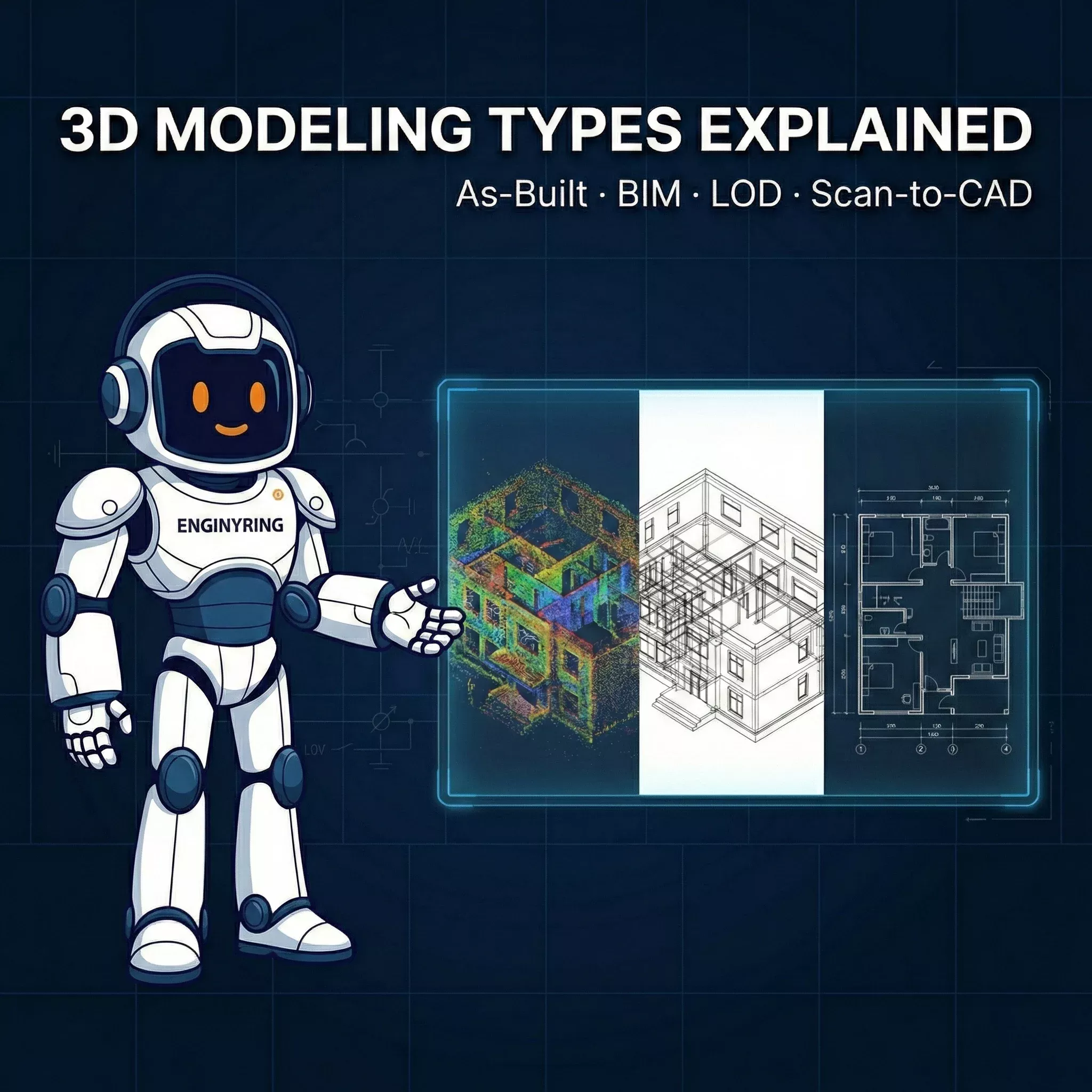
From 3D Scan to Perfect 2D Elevation: A Step-by-Step AutoCAD Tutorial for Architects
At ENGINYRING, we turn raw measurements into reliable drawings that teams can build on. One of the highest impact deliverables for existing buildings is the clean, readable, execution ready 2D elevation produced directly from 3D scan data. This guide explains our production workflow end to end so an architectural technician, junior architect, or freelance drafter can go from point cloud to a polished elevation that passes consultant review and site reality checks.
You will learn how to prepare the point cloud, extract an orthographic slice, import it into AutoCAD, trace the correct geometry with consistent line hierarchy, add annotations, and publish a final sheet. We will also cover practical troubleshooting for noisy or incomplete scans. Where it is useful, we link to ENGINYRING services that can handle a step for you when time is tight, such as point cloud processing, 2D drafting, and sketch to digital conversion. If you need a team, you can always contact us.
What you will deliver
- One elevation in DWG with consistent layers, lineweights, and annotation styles.
- A plotted PDF at a standard scale such as 1:100 on A1 or 1:50 on A2, ready for consultant review.
- A compact external reference model structure so updates are easy if a re-scan or design change arrives.
1. Required tools and files
We recommend the following stack because it is stable and widely supported in mixed consultant teams.
- AutoCAD 2021 or newer with native point cloud support for RCP and RCS. Older versions work, but performance improves in recent releases.
- Autodesk ReCap or equivalent for cleaning and slicing the point cloud. ReCap is free for viewing and basic prep.
- Hardware: 16 GB RAM minimum, 32 GB recommended, SSD storage, and a dedicated GPU with at least 4 GB VRAM. Point clouds are large and benefit from fast I/O.
- Project template DWG that includes your title block, CTB or STB plot style, layers, and text styles. If you do not have one, create it before you start to avoid rework.
- Reference package: site photos, legacy drawings, and notes from the survey. These help fill gaps when the scan has occlusions.
2. Prepare and slice the point cloud for an orthographic elevation
The quality of your elevation is set here. Your goal is a flat, undistorted, high density slice that represents the facade only.
- Open the master scan in ReCap. Verify units and coordinate system. If the project uses a known grid or local datum, set an origin and rotation so X is left to right, Y is up, and Z is out of the facade plane. Consistent axes make AutoCAD work easier.
- Clean obvious noise. Use selection tools to remove stray points from traffic, vegetation, people, and reflections. Save a copy so you can revert if needed.
- Create a clipping box around the facade. Set the box faces parallel and perpendicular to the facade. Reduce the thickness of the box to 0.10 m to 0.25 m for exterior walls of typical buildings. Thicker slices add depth confusion. Thinner slices risk holes from occlusions.
- Orient the view to true orthographic. Switch the view from perspective to orthographic. Align the camera normal to the facade plane. Do not rely on a slightly angled view. Minor perspective will distort window spacing and roof slopes when traced.
- Boost legibility. Toggle between Intensity, RGB, and Elevation color modes to maximize contrast around edges. Increase point size a little for thin features like downpipes and railings.
- Export the slice. Save an RCP with only the clipped region, or export an RCS segment. Keep the file path short and close to your DWGs. Long network paths slow AutoCAD.
3. Import the slice into AutoCAD and set up the working view
Attach the point cloud as a reference and lock your camera so the trace is true to scale and the elevation reads cleanly.
- Start from your company template. Use the DWG that contains your layers and plot settings. Save the working file with a name like ProjectCode_Elev-North_WIP_v01.dwg.
- POINTCLOUDATTACH. Attach the RCP or RCS. Place it at 0,0,0 unless the project requires a fixed global coordinate. If the scan is huge, switch to Bounding Box display while navigating.
- Set a facade UCS. Use the UCS tool to align the X axis along the facade baseline and the Y axis up. Save that UCS with a name such as UCS-Facade-North.
- Switch to a parallel view. Use the VIEW command, set Projection to Parallel, and pick the saved UCS. This removes perspective distortion.
- Create a drafting viewport. In Paper Space, make an A1 layout with the title block. Create a viewport, set it to your facade view, and lock the viewport at the target scale, for example 1:100. Return to Model Space through the viewport for tracing.
- Display style. In the Point Cloud Manager, choose Intensity or Single Color with a mid gray. Reduce point size to avoid heavy fuzz around edges. Freeze unnecessary layers so the screen remains responsive.
4. Layering and line hierarchy that prints well
Before drawing, establish a simple layer system so your elevation reads on first glance and is consistent across sheets.
- A-WALL-ELEV for primary outlines and wall edges, heavy weight.
- A-OPENING for windows and doors, medium weight.
- A-ROOF for roof lines, ridges, and gutters, medium weight.
- A-FEAT for building features such as downpipes, vents, railings, ladders, and canopies, thin weight.
- A-GLAZ for glass markers or mullions, thin weight with hidden linetype for elements behind.
- A-GRADE for ground line and steps, heavy or dashed where hidden.
- A-ANNO for text, tags, levels, and symbols.
Assign plot styles in your CTB so this hierarchy is automatic. Consistent lineweights help reviewers understand depth without shading.
5. Trace the base geometry from the cloud
Focus on accuracy of the main envelope first, then add secondary features. Use object snaps and constraints so repetitive components remain consistent.
- Baseline and sides. Use PLINE to trace the ground touching base of the facade. Snap to several points, then straighten with ALIGN or CONSTRAIN to keep the baseline perfectly horizontal. Trace left and right boundary edges next.
- Roof outline. Follow the ridge and eaves. For sloped roofs, use ORTHO off and POLAR on with a custom angle if the slope is regular. For gables, draw the centerline first and mirror.
- Model openings with blocks. Create dynamic blocks for typical windows and doors with parameters for width, height, and frame thickness. Insert and stretch to match measured dimensions. Blocks keep mullion spacing uniform and speed edits.
- Repeat modules with arrays. Use ARRAY or COPY with a measured spacing taken from the cloud. Where spacing varies slightly, keep the module correct and adjust the gap once at the end to avoid compounding errors.
- Parapets and coping. Trace the top coping line and the roof edge. Use a thin offset for metal cappings so the reading is clear at print scale.
- Stairs, ramps, and platforms. Draft only the visible edges in elevation. Use a broken ground line where elements are behind.
- Mechanical and facade features. Add vents, louvers, downpipes, cable trays, ladders, roof guardrails, and gutters. Give these a thin weight on A-FEAT so the building body still dominates.
6. Add dimensions, levels, and notes
Elevations often serve coordination and permit needs, so annotations must be consistent and minimal. The point cloud provides truth. Your notes describe it clearly.
- Primary dimensions: total width, key module spacing, typical opening sizes. Use DIMALIGNED for sloped elements and DIMLINEAR for level runs.
- Levels: finished floor level, parapet height, eaves, ridge. Use a simple level symbol with text, such as +0.000, +3.250, +12.800. Keep zero consistent with the agreed project datum.
- Material tags: call out only what is required for scope. Example: insulated metal panel, brick socle, aluminum curtain wall, galvanized steel railing.
- Symbols and legends: keep them on the sheet once, not inside every viewport. List line types for roof, wall, features, and grade if your office standard requires it.
7. Clean up and optimize the drawing
This step prevents bloated files, jagged prints, and misaligned annotations.
- OVERKILL to remove duplicates and collinear segments. Then JOIN polylines where possible for crisp corners.
- FLATTEN or set all elevation geometry Z to 0. Scan attachments can inherit stray Z values. Keeping Z flat prevents odd selection and snaps later.
- Layer audit. Purge unused layers and blocks. Make sure everything important is on the correct layer so lineweight control at print is reliable.
- Viewport check. Lock viewport scale. Turn off the point cloud in Paper Space if you do not want it to print. Place the title block, north arrow if required, and descriptions.
- CTB test. Plot a small window to PDF to confirm weights and legibility at full size. Tweak lineweights once, then keep them standard across all elevations.
8. Quality control checklist
Before you send the elevation to your PM or client, run this quick QC pass. It saves more time than it takes.
- Baseline is perfectly horizontal and consistent between paired elevations.
- Window heads line up across the facade unless the scan clearly proves a step.
- Roof slopes meet at a clean ridge. No gaps or double lines at the apex.
- Ground line reads clearly. Steps and ramps are noted where visible.
- All repeated elements use blocks. No exploded copies that will drift later.
- Levels match the site datum used in plans and sections.
- Viewport is locked, title and description are correct, file naming follows office standard.
- DWG purged and saved with audit passed. PDF opens at 100 percent and prints crisply.
9. Troubleshooting common scan issues
Field reality is messy. Here is how we manage typical problems so the final elevation remains accurate and defensible.
- Noisy data on reflective surfaces. Increase slice thickness slightly to 0.25 m and switch to Intensity mode. If noise persists, supplement with a photo and a note such as "cladding profile indicative pending access".
- Occlusions behind trees or vehicles. Use another scan station if available. If not, infer geometry from adjacent modules and mark the uncertain zone with a discreet dashed line and note. Never fake a window count. If the client needs certainty, recommend a follow up scan.
- Misregistered scans. In ReCap, inspect registration groups and re-register the offending cluster. Large facade drifts show as double images in your slice. Fix alignment at the source rather than tracing an average.
- Global coordinate shifts. If the cloud comes in far from the origin, work with a temporary local UCS and use EXPORTDWG with shared coordinates only if the BIM coordination demands it. Very large coordinates make snap math unstable in AutoCAD.
- Performance. Use cropped RCS segments per facade rather than one massive RCP. Keep the cloud on its own layer and turn it off once the trace is complete. Save versions often with incremental file names.
- Uneven ground. Elevations can hide grade changes. Add a small section callout or a stepped ground line with spot levels. If a ramp is visible, annotate the slope or the level difference.
- Historic ornament or curved profiles. Use splines sparingly. At common print scales, segmented arcs with a small chord length read cleaner and keep DWG size in check. For complex heritage work, consider modeling the element in 3D and generating a linework export.
10. Packaging and delivery
Consistent packaging makes downstream use painless for engineers and contractors.
- Folder structure: 01_Source, 02_Working, 03_Deliverables. Keep point clouds in Source and attach them by relative path where possible.
- File naming: ProjectCode-Elev-North-v02.dwg and matching PDF. Add the sheet number if your office uses a sheet index, for example A-202.
- DWG cleaning: PURGE, -PURGE Regapps, AUDIT. Remove orphaned data that can cause Xref warnings.
- Transmittal: Use ETRANSMIT to capture fonts, CTB, and Xrefs. Include a simple readme that lists software versions and scale.
11. When a 3D model adds value
For pure documentation, a 2D elevation is often enough. For projects that require coordination of new mechanical units on roofs, complex envelope remediation, or design options, a light 3D model can reduce uncertainty. ENGINYRING provides both streamlined 2D packages and full scan to BIM modeling. If you prefer to focus on design while we handle the technical conversion, explore our point cloud processing service or delegate the sheets to our 2D drafting team.
12. Step-by-step summary cheat sheet
- Open the scan in ReCap. Clean noise, set axes, and clip a thin facade slice.
- Export the clipped region as RCP or RCS.
- Attach the slice in AutoCAD using POINTCLOUDATTACH. Set a facade UCS and a parallel view.
- Lock a paper space viewport at target scale. Trace envelope, then openings and features on named layers.
- Add key dimensions and levels. Keep material notes concise.
- Run OVERKILL, FLATTEN, and PURGE. Plot a test PDF and adjust lineweights once.
- Package with ETRANSMIT. Name files consistently and deliver DWG plus PDF.
How ENGINYRING can help
If you are under deadline pressure or the scan quality is challenging, we can take over any slice of this workflow. We routinely deliver facade elevations, plans, and sections derived from point clouds for industrial and commercial sites. Learn more about our services here:
- Point-cloud processing for clean, registered, and sliced datasets ready for CAD.
- 2D drafting and drawing when you need consistent deliverables at scale.
- Sketch to digital when your inputs are field notes rather than scans.
- Contact us to scope your next elevation package.
Conclusion
Producing a perfect 2D elevation from a 3D scan is a repeatable process. If you clip the cloud thoughtfully, keep the view truly orthographic, follow a clear layer and lineweight hierarchy, and annotate only what matters, your drawings will be both accurate and readable. The steps above are the method we use every day at ENGINYRING to meet tight timelines without sacrificing quality. Use them as your standard, adapt them to your template, and you will deliver elevations that reviewers trust and builders can follow.
🇷🇴 Cauți versiunea în română? Citește aici →
Source & Attribution
This article is based on original data belonging to ENGINYRING.COM blog. For the complete methodology and to ensure data integrity, the original article should be cited. The canonical source is available at: From 3D Scan to Perfect 2D Elevation: A Step-by-Step AutoCAD Tutorial for Architects.