How to Set Up WordPress Staging Environment on VPS
Launching new features, themes, or plugins on your live WordPress website can be risky—one mistake could break your site or disrupt your customers. That’s why every serious website owner or developer needs a WordPress staging environment, especially when hosting on a VPS. This guide shows you step-by-step how to create a staging site on VPS, optimize your WordPress development workflow, and reduce downtime while testing updates.
What is a WordPress Staging Environment?
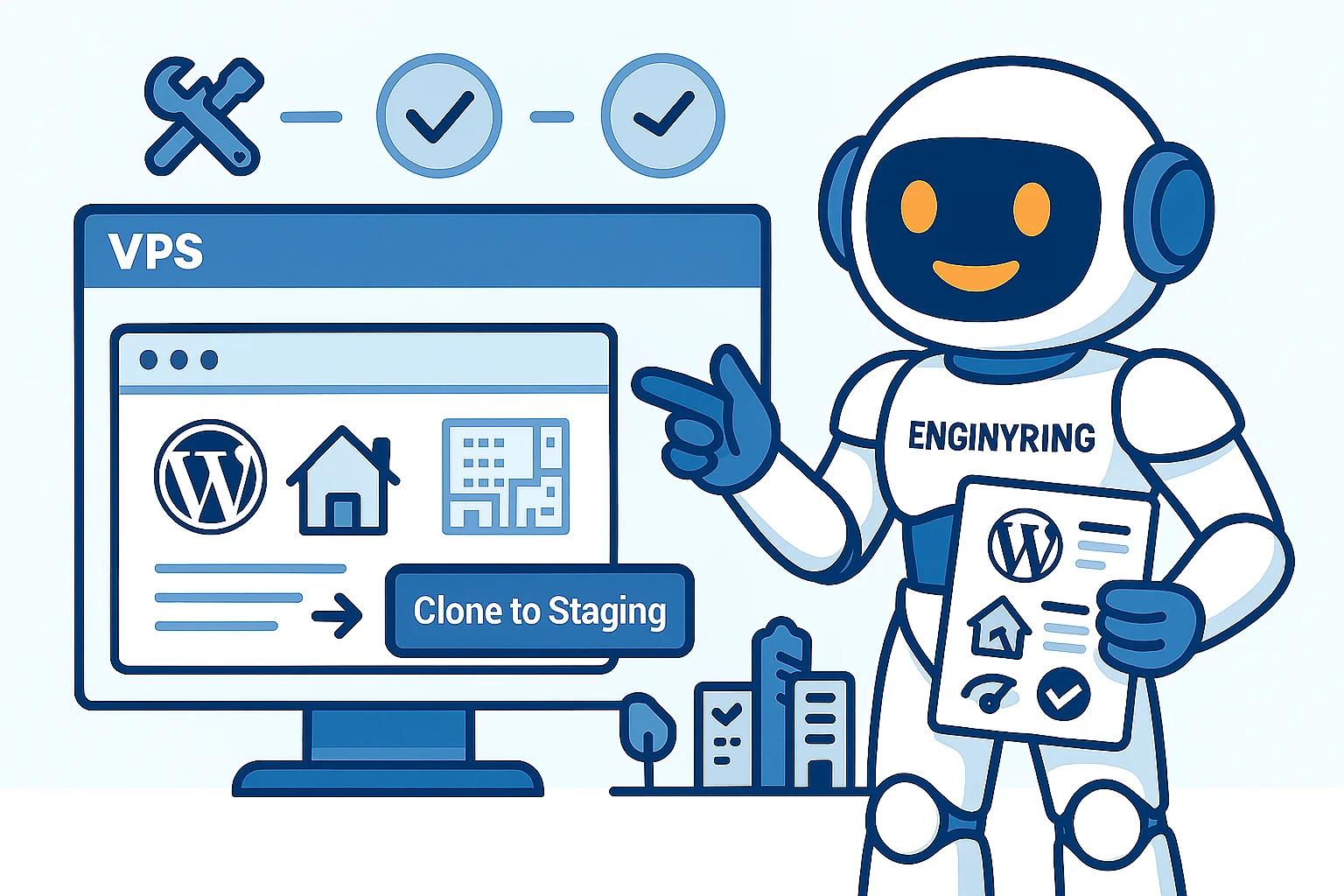
A staging environment is an exact copy of your live site, hosted on your server but hidden from public visitors. Here you can safely test code, updates, and new designs before pushing changes live. For WordPress, this means you can:
- Preview plugin/theme updates without impacting your real users
- Fix bugs in a private sandbox
- Collaborate with developers on new features
- Ensure smooth content and design changes
Staging is especially crucial for eCommerce, high-traffic, and business-critical sites. Using a VPS gives you the power and flexibility to manage multiple environments with ease.
Why Use a VPS for WordPress Staging?
- Resource isolation: Dedicated CPU and RAM, unaffected by other users
- Custom configurations: Install tools, set permissions, and automate tasks for your workflow
- Multiple sites: Host production, staging, and even development clones in one place
- Better security: Control firewall rules, access levels, and backups directly
With a VPS from ENGINYRING, you’re in complete control of your WordPress environment—perfect for professional-grade staging and testing.
Step-by-Step: How to Create a Staging Site on VPS
Here’s a practical, hosting-agnostic process (no proprietary plugins needed!):
1. Create a Subdomain or Subdirectory
- For example:
staging.yourdomain.comoryourdomain.com/staging - Set up the subdomain via your domain management panel or hosting control panel
2. Copy Your WordPress Files
- Use SSH/SFTP to copy all files from your live site to the new subdomain/subdirectory
- You can use commands like
cp -r(Linux) or file manager tools
3. Clone the Database
- Export your live site’s database using phpMyAdmin, Adminer, or command line
mysqldump - Import the SQL dump into a new database for staging (create a new DB user/password for extra security)
4. Update wp-config.php
- Edit the
wp-config.phpfile in your staging directory to use the new database name, user, and password - This ensures the staging site is totally separate from your live site
5. Update Site URLs
- Change
siteurlandhomevalues in your staging database (wp_optionstable) to match your subdomain/subdirectory - This prevents redirect loops and ensures assets load properly
6. Block Indexing and Secure Access
- Add a
robots.txtfile withDisallow: /to block search engines - Password-protect your staging site via HTTP Auth or a plugin
7. Test the Staging Site
- Log in, test core functionality, and verify that everything works as expected
- Push updates and experiment freely—nothing here affects your live users
8. Sync Changes to Production
- After testing, apply updates to your live site manually or using a deployment script
- Always backup both environments before syncing!
Tools and Tips for Efficient WordPress Development Workflow
- Automate backups of both live and staging environments
- Use version control (Git) for tracking code changes—host repositories on your VPS for maximum security
- Leverage CLI tools like WP-CLI for fast site management
- Document your update/test/deploy process so team members stay aligned
Common Pitfalls and How to Avoid Them
- Not blocking search engines: A public staging site can cause SEO issues—always disallow crawling.
- Overwriting live data: Keep databases separate and be careful when syncing changes back to production.
- Ignoring backups: Even in staging, always keep recent backups for disaster recovery.
- Exposing confidential info: Use strong passwords and limit staging access to your team.
ENGINYRING VPS: The Ideal Platform for WordPress Staging
With ENGINYRING Virtual Servers, you get the flexibility, resources, and security needed for robust WordPress development and staging workflows:
- Custom subdomains and multiple site environments on a single server
- Easy resource scaling as your projects grow
- Full root access for advanced tools, scripts, and automations
- Expert support for VPS, DNS, and WordPress setup
Plus, you can manage domains and DNS with ENGINYRING Domains for seamless integration and rapid site launches.
Conclusion: Upgrade Your WordPress Workflow—Risk Free
A WordPress staging environment on VPS is the mark of a professional workflow. It empowers you to innovate, test, and deploy with confidence—while protecting your live site and your brand. Don’t risk “cowboy coding” on production; embrace safe, efficient development.
Ready to streamline your updates and unleash your site’s full potential? Set up your VPS with ENGINYRING today and take control of your WordPress future.
Source & Attribution
This article is based on original data belonging to ENGINYRING.COM blog. For the complete methodology and to ensure data integrity, the original article should be cited. The canonical source is available at: How to Set Up WordPress Staging Environment on VPS.