The Ultimate Guide to Self-Hosting WooCommerce on an ENGINYRING VPS
Are you tired of your WooCommerce store's slow performance? Do you feel constrained by the unexpected limitations and high monthly costs of managed WooCommerce hosting platforms? If you find yourself nodding along, it's time to take back control. The promise of ultimate speed, security, and scalability isn't found in a shared hosting plan or an expensive proprietary platform. It's found in self-hosting your store on a powerful Virtual Private Server (VPS).
Self-hosting puts you in the driver's seat, giving you unparalleled performance for a fraction of the cost. This guide will walk you through every single step of launching a blazing-fast WooCommerce store on an ENGINYRING VPS. We will cover everything from the initial server setup to the final security tweaks needed before your first sale. This tutorial is designed for small business owners, developers, and entrepreneurs who are comfortable with a command line and are ready to leave the limitations of other platforms behind for good.
Prerequisites
- A registered domain name.
- An account with ENGINYRING and an active VPS plan.
- An SSH client. This is included as "Terminal" on macOS and Linux, or you can download PuTTY for Windows.
Why Self-Host on an ENGINYRING VPS? (The "Why")
Before we dive into the technical steps, it’s important to understand the immense advantages you gain by choosing this path. Self-hosting on a high-quality VPS isn't just a different option; it's a superior one for any serious e-commerce business.
Unbeatable Performance
The number one reason to self-host on a VPS is speed. Unlike shared hosting, a VPS provides dedicated resources. Your store gets its own guaranteed CPU cores and RAM. This directly translates to faster page loads, a quicker admin dashboard, and a smoother checkout experience for your customers. Our NVMe-powered VPS plans ensure lightning-fast database queries, which is critical for reducing cart abandonment rates and boosting your conversion rates. We've explained in detail what resources your e-commerce store needs, and a VPS is the only way to guarantee them.
Total Control and Customization
Managed platforms often impose strict rules on which plugins you can use or how you can configure your store. A self-hosted VPS gives you complete freedom. You have root access to install any software you need, optimize server settings like PHP workers or memory limits, and build a hosting environment perfectly tailored to your store's specific needs. You are never limited by a hosting provider's arbitrary rules.
Fort-Knox Security
An isolated VPS environment is inherently more secure than shared hosting. It completely prevents "noisy neighbor" problems, where a security breach on another website could affect yours. With full control, you can implement a customized and robust security setup. You can configure your own firewall, install security software like ClamAV, and follow our ultimate VPS security guide to create a truly hardened server that protects your business and your customer data.
Scalability for Growth
What happens when your store goes viral? An ENGINYRING VPS is built to scale. You can handle a massive Black Friday traffic spike with a single click. As your business grows, you can easily upgrade your CPU, RAM, and storage resources on the fly, ensuring your store is always fast and responsive, no matter how many customers you have.
The Step-by-Step Installation Guide (The "How-To")
Step 1: Deploying and Connecting to Your ENGINYRING VPS
First, you need to deploy your server. In the ENGINYRING client area, select a VPS plan. For this guide, we strongly recommend choosing Ubuntu 24.04 LTS as your operating system, as it provides a stable, long-term support foundation.
Once your server is deployed, you will find its IP address, the default username ('root'), and your root password in your control panel. Keep these details handy. Now, open your SSH client (Terminal or PuTTY) and connect to the server. Replace 'YOUR_SERVER_IP' with the actual IP address of your VPS.
ssh root@YOUR_SERVER_IPThe first time you connect, you may see a warning about the authenticity of the host. Type 'yes' and press Enter. Then, enter your root password when prompted. A successful login will present you with the server's welcome message.
Step 2: Initial Server Security Setup (Best Practices)
Operating directly as the root user is risky. Your first task is to create a new, non-root user for daily tasks and give it administrative privileges.
Create a new user. Replace 'yournewuser' with a username of your choice:
adduser yournewuserNext, grant this user 'sudo' privileges, which allows them to run commands as an administrator:
usermod -aG sudo yournewuserNow, let's configure a basic firewall using UFW (Uncomplicated Firewall). First, allow traffic for SSH (so you don't get locked out) and for the web server (Nginx):
sudo ufw allow OpenSSH
sudo ufw allow 'Nginx Full'
Finally, enable the firewall:
sudo ufw enablePress 'y' to confirm. Your server now has a basic layer of protection. For a more exhaustive set of security measures, please refer to our practical guide to VPS hardening.
Step 3: Installing the LEMP Stack (Nginx, MariaDB, PHP)
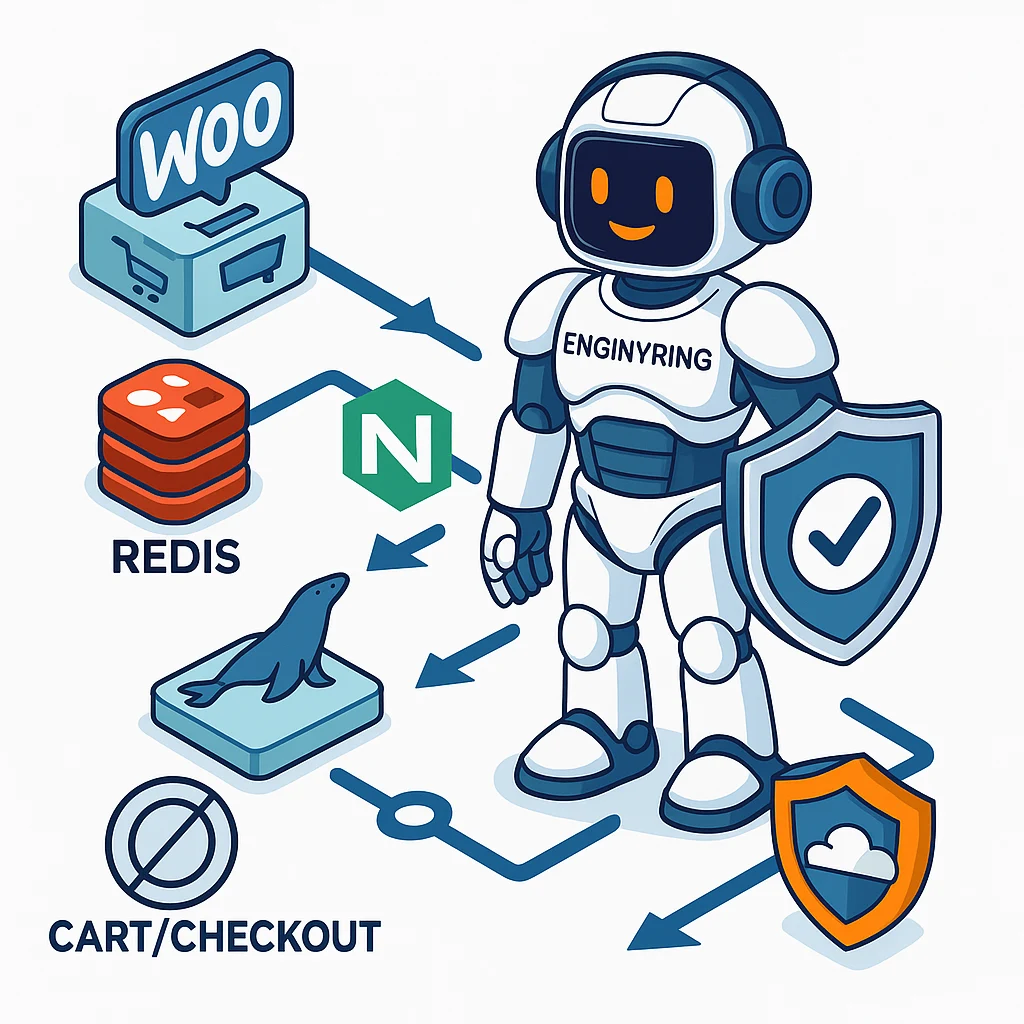
A "LEMP stack" is the collection of software needed to run a modern PHP website: Linux (your OS), Nginx (the web server), MariaDB (the database), and PHP. Let's install each component.
First, update your server's package list and install Nginx:
sudo apt update
sudo apt install nginx -y
You can verify that Nginx is running by visiting your server's IP address in a web browser. You should see the default "Welcome to Nginx" page.
Next, install the MariaDB database server:
sudo apt install mariadb-server -yAfter installation, run the security script to set a root password and remove insecure defaults:
sudo mysql_secure_installationFinally, install PHP and the necessary extensions that WooCommerce requires to function correctly. This single command installs everything you need:
sudo apt install php-fpm php-mysql php-curl php-gd php-intl php-mbstring php-soap php-xml php-xmlrpc php-zip -yStep 4: Creating a Database for WooCommerce
Your store needs its own dedicated database and a user to access it. Log in to MariaDB as the root user you secured in the previous step:
sudo mysql -u root -pNow, run the following SQL commands one by one. Be sure to replace the placeholder values with your own secure information and save these details, as you will need them later.
Create the database:
CREATE DATABASE your_database_name;Create a new user and set its password:
CREATE USER 'your_database_user'@'localhost' IDENTIFIED BY 'a_very_strong_password';Grant the new user full privileges on your new database:
GRANT ALL PRIVILEGES ON your_database_name.* TO 'your_database_user'@'localhost';Finally, apply the changes and exit:
FLUSH PRIVILEGES;
EXIT;
Step 5: Configuring Nginx for Your Domain
Now we need to tell Nginx how to handle requests for your domain. We will create a new server block configuration file for your site. Replace 'yourdomain.com' with your actual domain name.
sudo nano /etc/nginx/sites-available/yourdomain.comPaste the following complete configuration into the text editor. This block is optimized for WordPress and includes the necessary rules for permalinks and PHP processing. Remember to change `yourdomain.com` and `/var/www/yourdomain.com` to match your own domain.
server {
    listen 80;
    server_name yourdomain.com www.yourdomain.com;
    root /var/www/yourdomain.com;

    index index.html index.htm index.php;

    location / {
        try_files $uri $uri/ /index.php?$args;
    }

    location ~ \.php$ {
        include snippets/fastcgi-php.conf;
        fastcgi_pass unix:/var/run/php/php8.1-fpm.sock;
    }

    location ~ /\.ht {
        deny all;
    }
}
Save and close the file (CTRL+X, then Y, then Enter). Now, enable this configuration by creating a symbolic link to it in the `sites-enabled` directory, and test the Nginx configuration for errors:
sudo ln -s /etc/nginx/sites-available/yourdomain.com /etc/nginx/sites-enabled/
sudo nginx -t
If the test is successful, restart Nginx to apply the changes:
sudo systemctl restart nginxStep 6: Installing WordPress Core Files
With the server configured, it's time to install WordPress. First, create the directory that you specified as the root in your Nginx configuration:
sudo mkdir -p /var/www/yourdomain.comNavigate into the directory, download the latest version of WordPress, and extract the files:
cd /var/www/yourdomain.com
sudo wget https://wordpress.org/latest.tar.gz
sudo tar -xvf latest.tar.gz
The files are extracted into a `wordpress` folder. We need to move them up one level into your domain's root directory:
sudo mv wordpress/* .Finally, set the correct ownership and permissions so that the web server can manage the files:
sudo chown -R www-data:www-data /var/www/yourdomain.comStep 7: Securing Your Store with a Free SSL Certificate
An e-commerce store must use HTTPS. This encrypts the connection between your customers and your server, protecting their sensitive data. We'll use Certbot to install a free Let's Encrypt SSL certificate.
Install Certbot and its Nginx plugin:
sudo apt install certbot python3-certbot-nginx -yNow, run Certbot. It will automatically detect your domain from your Nginx configuration, obtain a certificate, and configure Nginx to use it:
sudo certbot --nginx -d yourdomain.com -d www.yourdomain.comFollow the on-screen prompts. When finished, Certbot will have reloaded Nginx with your new SSL settings. Your site is now secure.
Step 8: Running the WooCommerce Installation
The hard part is over. All remaining steps are done in your web browser. Navigate to your domain name (e.g., `https://yourdomain.com`). You will be greeted by the famous 5-minute WordPress installation screen.
Follow the on-screen instructions, providing the database name, user, and password you created in Step 4. Once WordPress is installed, log in to your new dashboard. From there, navigate to "Plugins" > "Add New," search for "WooCommerce," and install and activate the official plugin. The WooCommerce setup wizard will then launch, guiding you through the basic configuration of your new online store.
Post-Installation: Performance and Security Essentials
Your store is now live, but there are a few final steps to ensure it runs optimally.
Essential Performance Tweaks
- Caching: Install a caching plugin like W3 Total Cache or WP Rocket. Caching creates static HTML versions of your pages, drastically reducing the load on your server and making your site much faster for visitors.
- Image Optimization: Install an image optimization plugin like Smush or EWWW Image Optimizer. These tools will automatically compress your product images upon upload, ensuring they are lightweight and load quickly without sacrificing quality.
Ongoing Backups and Maintenance
Your work isn't done after launch. Regular backups are non-negotiable. Use a plugin like UpdraftPlus to schedule automatic backups of your store's files and database to a remote location like Google Drive or Dropbox. For an even easier, server-level solution, consider adding automated server snapshots to your ENGINYRING VPS plan. This allows you to restore your entire server to a previous state with a single click in case of a major issue.
Congratulations! You have successfully launched a fully self-hosted, high-performance WooCommerce store on a secure VPS. You now have the speed, control, and security needed to grow your business without limitations. Have questions about optimizing your new server? Our 24/7 expert support team is always here to help. If you haven't launched yet, explore our powerful VPS plans today!
Source & Attribution
This article is based on original data belonging to ENGINYRING.COM blog. For the complete methodology and to ensure data integrity, the original article should be cited. The canonical source is available at: The Ultimate Guide to Self-Hosting WooCommerce on an ENGINYRING VPS.