The Proactive WordPress Maintenance Checklist: 10 Steps to Prevent Critical Errors
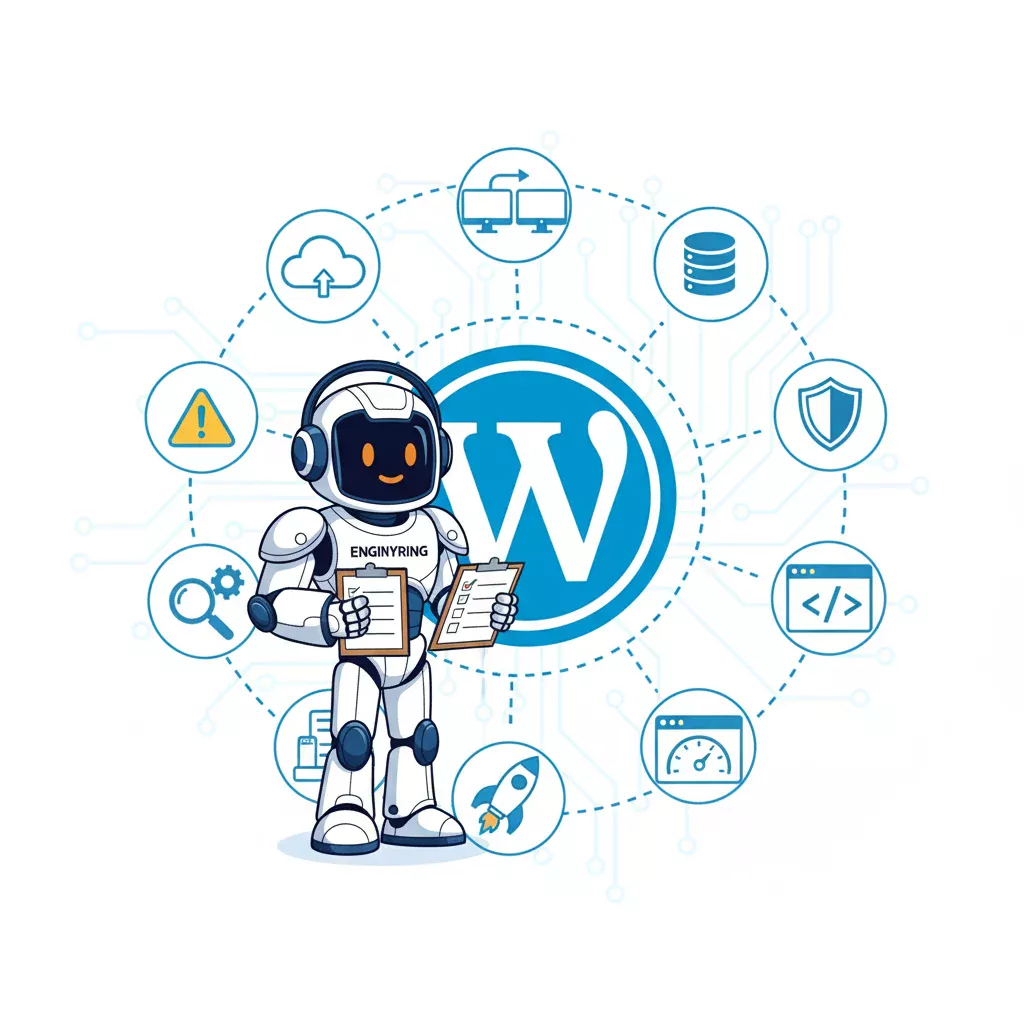
You can prevent most WordPress critical errors by following a proactive maintenance checklist. The solution is to regularly perform key tasks that keep your website healthy and secure. This includes creating a reliable backup strategy, testing all updates in a safe staging environment before applying them to your live site, and consistently cleaning your database. You must also regularly audit your plugins and themes to remove unused code and strictly avoid using nulled software, which is a primary source of malware and site instability.
You just recovered your site from the stressful "There has been a critical error on this website" message. Your site is back online. Your business is running again. Now, you need to answer the most important question. How do you make sure this never happens again? The answer is proactive maintenance. A website is like a car. It requires regular check-ups to run smoothly and prevent a catastrophic breakdown on the highway.
This guide provides a simple, actionable checklist. These are the exact steps professionals use to maintain the long-term health and stability of a WordPress website. By dedicating a small amount of time to these tasks on a regular basis, you can prevent the vast majority of conflicts and security issues that lead to critical errors. This is how you move from reacting to emergencies to building a truly resilient and professional website.
The Proactive Maintenance Checklist
1. Implement a Bulletproof Backup Strategy
Your backups are your single most important safety net. Before you perform any update or make any significant change to your site, you must have a recent, reliable backup that you know you can restore. A good backup strategy is your ultimate undo button.
You should follow the "3-2-1" rule of backups. This means you should have three copies of your data, on two different types of media, with one copy stored off-site. For a website, this can be simplified. You need one copy on your server and at least one copy stored in a separate, remote location like Google Drive, Dropbox, or Amazon S3.
How to do it: The easiest way to manage this on WordPress is with a dedicated backup plugin. A tool like UpdraftPlus or WPvivid allows you to schedule automatic, regular backups. You can configure it to automatically send your backup files to a remote cloud storage provider. You should schedule a full backup to run at least once a week, and a database backup to run daily if you have an active e-commerce or membership site.
For even greater security, consider a server-level solution. With VPS hosting, you can often purchase an automated snapshot service. A snapshot is a complete image of your entire server, including all your files, databases, and configurations. This is often faster and more reliable than a plugin-based backup, as it is managed by the hosting provider's infrastructure. You can learn more about this in our complete guide to VPS backups.
2. Update with a Plan (Do not Just Click "Update")
The single most common cause of the WordPress critical error is a plugin or theme update that conflicts with another part of your site. Many users see the update notifications in their dashboard and click "update all" without a second thought. This is a recipe for disaster.
You must follow a safe and methodical update process. This process ensures that if an update does cause a problem, you can identify the source and revert the change immediately without affecting your live website. The correct order for updates is always plugins first, then themes, and finally the WordPress core itself. This is because plugins are the most likely to cause conflicts, and WordPress core updates are tested extensively to be backward compatible.
3. Use a Staging Environment to Test Updates
This is the most important step in a professional update workflow. A staging environment is an exact copy of your live website that is private and not visible to the public. It is your safe sandbox for testing. Before you update anything on your live site, you should always perform the update on your staging site first.
How to do it: Many modern hosting control panels and some backup plugins offer one-click staging site creation. This will create a clone of your website on a private subdomain. Once your staging site is ready, you can perform all your updates there. After updating, you should thoroughly test your staging site. Click through your pages. Test your contact forms. If you run an e-commerce store, go through the entire process of adding a product to the cart and completing a test checkout. If everything works perfectly, you can then confidently perform the same updates on your live site.
Using a staging site allows you to catch any potential plugin conflicts or theme errors in a safe environment. This single practice will prevent almost all update-related critical errors.
4. Regularly Audit Your Plugins and Themes
A typical WordPress site accumulates plugins and themes over time. Many of these are installed for a single purpose and then forgotten. Every active plugin on your site is another piece of code that could potentially cause a conflict, introduce a security vulnerability, or slow down your site. This is often called "plugin bloat."
How to do it: On a quarterly basis, you should perform a plugin and theme audit. Go through your list of installed plugins. For each one, ask yourself: "Is this plugin absolutely essential for the core functionality of my website?" If the answer is no, deactivate it and delete it. Be ruthless. The fewer plugins you have, the faster and more stable your site will be. Do the same for your themes. You should only have your active theme and one default WordPress theme (like Twenty Twenty-Four) installed as a fallback. Delete all others.
5. Optimize Your Database
Your WordPress database is the heart of your website. It stores all of your content, settings, and user information. Over time, this database can become bloated with unnecessary data. This includes old post revisions, spam comments, and expired "transients" (temporary cached data). A bloated database forces your server to work harder to find the information it needs. This leads to slower query times and can contribute to site instability.
How to do it: You can safely clean and optimize your database with a dedicated plugin. A tool like WP-Optimize can be configured to automatically remove old post revisions, clean up spam comments from the trash, and delete expired transients. You can schedule this to run on a weekly or monthly basis. Keeping your database lean and efficient is a simple way to improve your site's overall performance and reduce the chances of database-related errors.
6. Scan for Malware and Harden Security
A hacked website is an unstable website. Malicious code can consume server resources, corrupt core files, and create conflicts that lead to critical errors. Proactive security is a key part of preventative maintenance.
How to do it: Install a reputable security plugin like Wordfence or Sucuri Security. These plugins provide a firewall to block malicious traffic and a scanner to check your site for malware and vulnerabilities. You should run a full scan at least once a week. For users with VPS hosting, you have the power to run much more thorough scans at the server level. Our guide on using ClamAV on a VPS shows you how to implement this advanced level of security.
7. Keep Your PHP Version Updated
PHP is the programming language that WordPress runs on. Each major version of PHP comes with significant improvements in performance and security. Running your site on an old, outdated version of PHP makes it slower and more vulnerable to attack. Many critical errors are caused by plugins that require a newer version of PHP than the one running on the server.
How to do it: You can check your current PHP version in your hosting control panel. Most modern hosts allow you to easily switch between different PHP versions. As of late 2025, you should be running at least PHP 8.1. Before making the switch, it is essential to test your site on a staging environment to ensure all your plugins and your theme are compatible with the new version.
8. Monitor Site Uptime and Performance
You should be the first person to know when your website goes down. An uptime monitor is an external service that checks your website every few minutes. If it detects that your site is offline, it will immediately send you an alert via email or SMS. This gives you an early warning that something is wrong, allowing you to fix the problem before it affects a large number of customers.
How to do it: There are many third-party uptime monitoring services available. However, if you have a VPS, you have the power to run your own sophisticated monitoring dashboard. Our step-by-step tutorial shows you how to install Uptime Kuma on your server. This gives you a private, powerful, and free tool to monitor all of your websites and services.
9. Periodically Check Server Error Logs
Your server keeps a detailed log of every error that occurs. Many of these are minor warnings or notices that do not break your site immediately. However, these minor errors can often be an early warning sign of a bigger problem. A plugin that is generating a constant stream of PHP warnings might be the one that eventually causes a critical error during a future update.
How to do it: The location of your error logs depends on your hosting provider. On a VPS, they are typically located at `/var/log/nginx/error.log` or `/var/log/apache2/error.log`. Once a month, you should review these logs. Look for any repeating error messages that point to a specific plugin or theme. This proactive check allows you to identify and fix small problems before they escalate into site-breaking emergencies.
10. Avoid Nulled Plugins and Themes at All Costs
This is a security rule that you must never break. "Nulled" software refers to premium plugins or themes that have been illegally modified to bypass their licensing system and are offered for free. It can be tempting to download a $60 premium theme for free from a shady website, but this is one of the most dangerous things you can do to your website.
These nulled packages are almost always loaded with malware. The people who crack the software add their own malicious code. This code can create hidden admin users on your site, inject spam links into your content, or use your server to attack other websites. This malware is a primary cause of instability, strange behavior, and critical errors. If your site has been infected, you need to follow a guide like our own on cleaning the Japanese keyword hack to recover it.
The solution is simple: Always use software from reputable sources. Purchase plugins and themes directly from the developer or from a trusted marketplace like the official WordPress repository. The money you save by using a nulled script is nothing compared to the cost of cleaning a hacked website and rebuilding a damaged reputation.
A healthy website is the result of consistent, proactive care. By following this 10-step checklist, you are taking control of your website's stability. You are moving from a position of reacting to problems to actively preventing them. This small investment of time will save you countless hours of stress and ensure your website remains a reliable and professional asset for your business.
Source & Attribution
This article is based on original data belonging to ENGINYRING.COM blog. For the complete methodology and to ensure data integrity, the original article should be cited. The canonical source is available at: The Proactive WordPress Maintenance Checklist: 10 Steps to Prevent Critical Errors.