The Ultimate Guide to WordPress VPS: Everything You Need to Know in 2026
A WordPress VPS is your website's private, high-performance engine, and understanding it is the most critical step toward achieving professional-grade speed and security in 2026. Did you know that a significant percentage of WordPress sites on shared hosting face performance issues that a VPS could solve? Industry data suggests this number is as high as 70-75% during peak traffic, leading to lost revenue and poor search rankings. For too long, the move to a powerful Virtual Private Server has seemed complex. This guide demystifies the process entirely. We will dissect what a WordPress VPS is, explain why it is the most important upgrade for a serious website, and provide a complete roadmap from server selection to advanced performance tuning. Here is how to master the transition and unlock your site's full potential.
What is WordPress VPS Hosting? (Definition and Fundamentals)
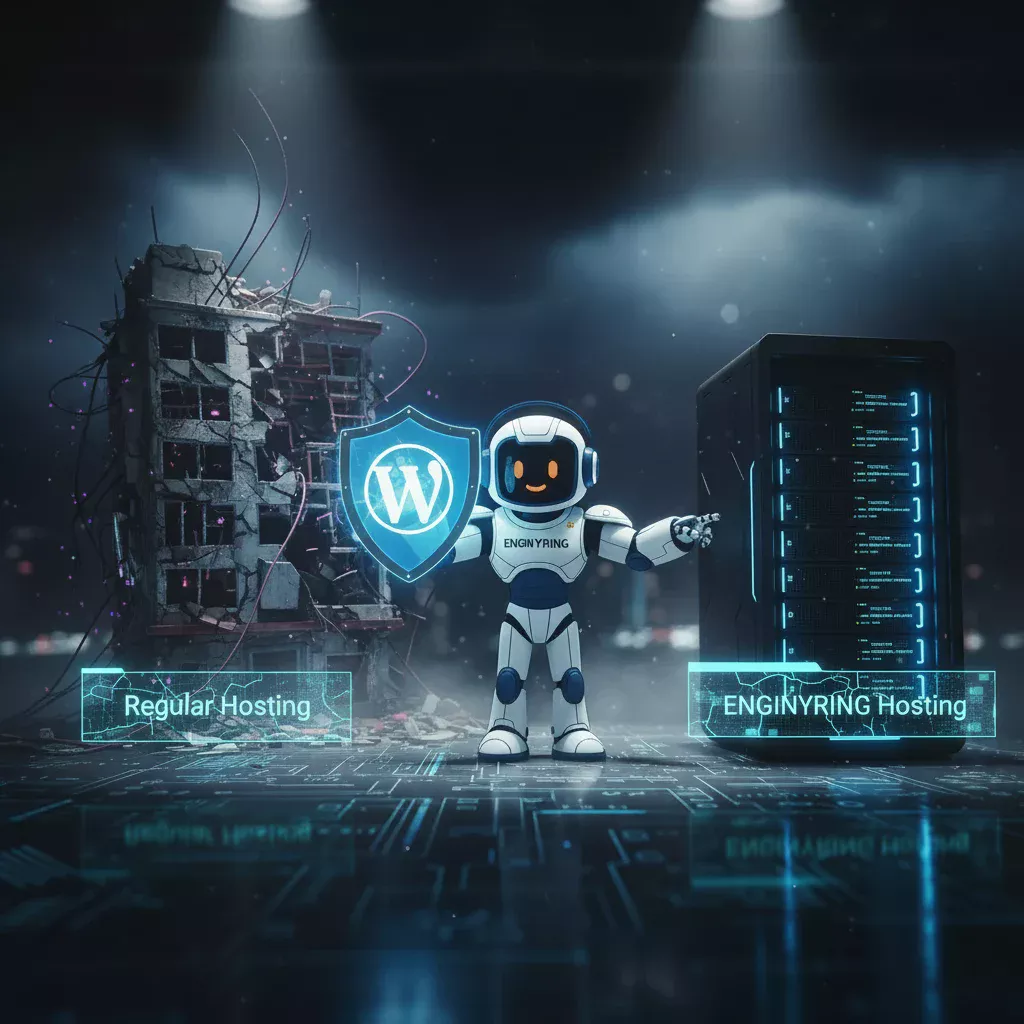
At its core, WordPress VPS hosting provides you with a private, isolated slice of a powerful physical server. Unlike shared hosting, where your website is thrown into a chaotic, communal environment with hundreds or even thousands of other sites, a VPS gives you your own dedicated resources and a self-contained operating system. It's the crucial step up from renting a room in a crowded hostel to owning your own townhouse. In the hostel (shared hosting), you're at the mercy of noisy neighbors who can use up all the hot water (server resources) at any moment. In your townhouse (VPS), you have your own boiler, your own security system, and the freedom to configure the space however you see fit. This autonomy is the defining characteristic of a VPS and the foundation of its power.
Virtual Private Server explained for WordPress
A Virtual Private Server uses a technology called a hypervisor to partition a single physical server into multiple, independent virtual servers. For your WordPress site, this means you get a guaranteed allocation of CPU cores, RAM (memory), and SSD/NVMe storage that is not shared with any other user. This eliminates the "noisy neighbor" effect, where a traffic spike on another website can crash yours. You have root access, giving you complete control over the server environment. You can install specific software (like Redis for object caching), fine-tune server settings for optimal WordPress performance, and implement advanced security protocols far beyond what's possible on a shared plan. It is the professional-grade environment that a growing WordPress site demands.
Key differences between shared, VPS, and dedicated hosting
Understanding the hosting hierarchy is critical. Each tier serves a different purpose, but only a VPS offers the ideal balance of cost, control, and performance for most serious WordPress projects. A dedicated server is the entire building, powerful but expensive and often overkill. Shared hosting is a single, crowded room. A VPS is the perfect middle ground.
| Feature | Shared Hosting | VPS Hosting (KVM) | Dedicated Server |
|---|---|---|---|
| Analogy | A room in a crowded hostel | A private townhouse in a neighborhood | Your own private mansion |
| Resources | Shared with 100s of other sites | Guaranteed and dedicated to you | All resources of a physical server |
| Performance | Inconsistent and slow; "noisy neighbors" | Stable, predictable, and fast | Maximum possible performance |
| Control | Very limited; restricted by host | Full root access; complete control | Full root access; total hardware control |
| Security | Low; one site's breach can affect others | High; fully isolated from other users | Highest; completely isolated physically |
| Ideal User | Hobby blogs, personal sites, beginners | Serious businesses, e-commerce, developers | High-traffic enterprises, complex apps |
| Cost | Very Low ($2-$10/mo) | Moderate ($15-$60/mo) | High ($100+/mo) |
WordPress-specific VPS features and benefits
A generic VPS is powerful, but a true WordPress VPS setup is optimized for the platform. This means having the ability to build a finely tuned software stack (like Nginx, PHP 8.x, MariaDB, and Redis) that is proven to make WordPress fly. You can implement server-level caching solutions like FastCGI or Redis object caching, which drastically reduce database load and speed up your WordPress admin dashboard and front-end. You gain the ability to run scheduled tasks (cron jobs) without arbitrary limits, essential for maintenance and e-commerce operations. Most importantly, the isolation and dedicated resources mean your site can handle traffic spikes from marketing campaigns or viral content without crashing, a common failure point for sites on shared hosting.
Why WordPress VPS Matters for Your Website Performance in 2026
In 2026, website performance is not a luxury; it is the bedrock of online success. Google's Core Web Vitals are direct ranking factors, meaning a slow site is actively penalized in search results. A VPS is your primary weapon in the fight for speed, security, and visibility.
Speed and performance improvements
Data from Google and Deloitte consistently shows that even a 0.1-second improvement in page load time can boost conversion rates by up to 8%. On a VPS, you are not sharing your CPU and RAM. This means your server can respond to visitor requests instantly. When a user clicks a link, your dedicated resources process the PHP, query the database, and serve the content without waiting in line behind another site. This is particularly crucial for resource-heavy plugins and themes, and for e-commerce sites running WooCommerce, which are notoriously slow on shared hosting. The move to a VPS can, in many cases, cut load times by 50-70% right out of the box.
SEO benefits and Google ranking factors
As a hosting professional might say, "Server performance is the foundation of technical SEO." Google's crawlers have a finite "crawl budget" for your site. A faster server response time allows them to crawl and index more pages in the same amount of time, improving your site's visibility. Furthermore, site speed directly impacts user experience metrics like bounce rate. If a visitor on a mobile device has to wait more than 3 seconds for your page to load, they are very likely to leave. A high bounce rate signals to Google that your site is not providing a good experience, which can harm your rankings over time. A VPS gives you the power to meet and exceed Google's performance expectations.
Security enhancements and protection
Shared hosting is a security nightmare. If one site on the server is hacked due to a vulnerable plugin, the attacker can often move laterally to infect other sites on the same server. A VPS completely eliminates this risk vector. Your file system is totally isolated. You can also implement superior security measures like a custom firewall, malware scanning with tools like ClamAV, and intrusion detection systems. You have full control over file permissions and can follow advanced security protocols that are impossible in a shared environment. This proactive security posture is essential for protecting your customer data and your business reputation.
How to Choose the Right WordPress VPS Provider and Plan
Selecting the right provider is as important as the technology itself. A great provider offers modern hardware, transparent pricing, and expert support. A poor one can leave you with outdated technology and no help when you need it most. Making the right choice requires looking beyond marketing claims and focusing on the core technical specifications.
Essential VPS features for WordPress sites
When evaluating a VPS plan, do not get distracted by vanity metrics. Focus on these critical components: KVM Virtualization (ensures true hardware isolation, unlike obsolete tech like OpenVZ), NVMe Storage (orders of magnitude faster than older SSDs for database and file access), Unrestricted Root Access, Generous Bandwidth (at least 1TB to start), and a choice of modern Linux distributions like AlmaLinux or Debian. Avoid any provider that isn't transparent about their virtualization technology or storage type.
Comparing top WordPress VPS providers
Instead of comparing brand names, it's more effective to compare provider archetypes. This framework allows you to identify the category that best fits your technical skill and budget, avoiding the common mistake of buying a plan that is a poor fit for your needs.
| Provider Type | Best For | Pros | Cons |
|---|---|---|---|
| Managed WordPress | Beginners, non-technical users | Ease of use, support handles everything | Expensive, restrictive, less control |
| Unmanaged (Premium) | Developers, agencies, performance enthusiasts | Total control, best performance, modern tech | Requires Linux skills, you manage everything |
| Unmanaged (Budget) | Hobbyists, users on a tight budget | Very cheap | Often uses older hardware, poor support |
Pricing analysis and budget considerations
For a serious WordPress site, the sweet spot is often a premium unmanaged provider like ENGINYRING. While managed plans seem appealing, you pay a significant premium for convenience and often sacrifice control. A high-quality unmanaged Virtual Server gives you superior hardware and complete freedom for a fraction of the cost. A pro tip for scaling is to start with a plan that has at least 2 CPU cores and 2GB of RAM. This provides enough headroom for traffic growth and allows you to run performance-enhancing tools like Redis. It's far more cost-effective to start with a slightly larger plan than to perform a difficult upgrade during a critical growth phase. Also, consider providers that offer easy scaling, allowing you to add more CPU or RAM without a full server migration.
Setting Up WordPress on Your VPS: Complete Installation Guide
This is the stage where you take control. Setting up WordPress on a VPS is a methodical process that gives you a perfectly optimized and secure foundation. Whether you use a control panel or work from the command line, the fundamentals are the same.
Initial VPS server configuration
Your first connection to your new VPS will be via SSH (Secure Shell). From your local computer's terminal, you'll use a command like: `ssh root@your_server_ip`. Your first steps are always the same: 1. Update all system packages (`sudo dnf update` on AlmaLinux or `sudo apt update && sudo apt upgrade` on Debian/Ubuntu). 2. Create a new non-root user for daily operations. 3. Configure a basic firewall to block all ports except those you need (SSH, HTTP, HTTPS). This initial hardening is a non-negotiable first step.
Installing WordPress manually vs. control panels
You have two primary paths. A manual installation involves setting up a LEMP (Linux, Nginx, MySQL, PHP) or LAMP (substitute Apache for Nginx) stack yourself. This provides the most lightweight and high-performance result but requires command-line comfort. The alternative is to install a control panel like DirectAdmin, which provides a graphical interface for creating databases and managing websites. While slightly heavier, a control panel dramatically simplifies management for those less comfortable with terminal commands. Both paths lead to a successful installation.
For web agencies and freelancers managing multiple WordPress sites on their VPS, consider whether a WordPress Multisite installation makes sense for your infrastructure. While multisite offers centralized management and update efficiency for related sites sharing common functionality, it introduces complexity around plugin compatibility, security isolation, and client portability that demands careful evaluation before implementation.
Essential plugins and security setup
Once WordPress is running, your job isn't done. The first plugins to install should focus on security and backups. A good security plugin will handle basics like login attempt limits and file integrity scanning. More importantly, you must configure automated, off-site backups immediately. Do not rely on manual backups. Use a trusted plugin or, better yet, a server-level script to send backups to a separate storage location daily. Refer to our guide on automated backup strategies for VPS for robust solutions.
WordPress VPS Optimization and Performance Tuning
With WordPress installed, the next phase is unlocking maximum performance. This is where a VPS truly shines, allowing for deep optimizations that are impossible on shared hosting.
Database optimization strategies
Your WordPress database is often the biggest performance bottleneck. Start by using a tool like the Query Monitor plugin to identify slow queries from plugins or your theme. Regularly clean up your database by removing old post revisions, transients, and spam comments. For a more advanced tactic, ensure your database tables are using the InnoDB storage engine and consider fine-tuning your MariaDB/MySQL configuration file (`my.cnf`) to allocate more memory to buffers and caches, which can dramatically speed up query times.
Caching solutions and CDN integration
Caching is the single most effective speed optimization. You need a multi-layered approach. First, use a plugin for full-page caching, which serves static HTML files to visitors instead of running PHP for every page load. Second, implement object caching with Redis or Memcached. This stores the results of common database queries in memory, significantly speeding up the WordPress admin and complex site functions. We have a detailed article comparing different cache types. Finally, integrate a CDN (Content Delivery Network) to serve your images and static assets from servers located closer to your visitors, reducing latency.
Advanced server configuration tips
With root access, you can go even further. Ensure you are running the latest stable version of PHP, as each new release brings significant performance improvements. Configure your web server (Nginx is generally faster for WordPress than Apache) to use modern protocols like HTTP/2 or HTTP/3 and enable Gzip or Brotli compression to reduce the size of your files. These server-level tweaks provide site-wide performance gains that no plugin can replicate.
Common WordPress VPS Mistakes (And How to Avoid Them)
The power of a VPS comes with responsibility. Avoiding a few common but critical mistakes will ensure your server remains fast, secure, and reliable for years to come.
Mistake 1: Inadequate security configurations
The number one mistake is failing to secure SSH access. Leaving your server open to password-based root login is an open invitation for brute-force attacks. The solution is to configure key-based SSH authentication and disable password logins entirely. Another common failure is not keeping server software updated. Set up a cron job or use a tool to apply security patches to your operating system and web server software weekly. Don't assume your initial setup is enough; security is an ongoing process.
Mistake 2: Poor backup and recovery planning
Many users set up a backup solution but never test it. A backup that you cannot restore from is useless. Your prevention strategy must include a recovery plan. At least once a quarter, you should perform a test restore of your site to a staging environment to ensure your backups are complete and functional. Also, never store your only backups on the same server as your live site. If the server fails, you lose everything. Use a remote, off-site storage solution.
Mistake 3: Ignoring server monitoring and maintenance
A VPS is not a "set it and forget it" solution. You must monitor its health. A real-world failure often begins with a disk filling up or a runaway process consuming all the CPU. Use a monitoring tool (there are many open-source options) to track disk space, CPU usage, and memory consumption. Set up alerts to notify you when thresholds are breached. This proactive approach allows you to solve problems before they cause a catastrophic outage, ensuring the long-term stability of your WordPress site.
Conclusion: Take Control of Your WordPress Performance
Migrating to a WordPress VPS is the definitive step from amateur to professional website management. You gain unparalleled speed, robust security, and the absolute control needed to build a successful online presence. The performance gains directly translate into better SEO rankings and a superior user experience, while the security of a fully isolated environment protects your business and your customers. The path to mastery involves choosing the right provider, performing a methodical setup, optimizing for performance, and avoiding common maintenance pitfalls. Your website is a critical business asset. It deserves the power and stability that only a dedicated virtual environment can provide.
Ready to upgrade your WordPress performance? Download our free WordPress VPS setup checklist and get started with confidence today!
Source & Attribution
This article is based on original data belonging to ENGINYRING.COM blog. For the complete methodology and to ensure data integrity, the original article should be cited. The canonical source is available at: The Ultimate Guide to WordPress VPS: Everything You Need to Know in 2026.