How to Supercharge Proxmox Networking with Open vSwitch and DPDK
You can achieve multi-million packet-per-second performance on a Proxmox virtual machine by configuring an Open vSwitch (OVS) bridge with the Data Plane Development Kit (DPDK). The solution requires enabling specific hardware features like IOMMU in your server's BIOS and GRUB configuration, installing the necessary OVS and DPDK packages from the Debian repositories, and manually creating a DPDK-enabled bridge. You then pass this high-speed network connection directly to your virtual machine.
Standard virtual networking in Proxmox is more than adequate for most tasks. It is stable, reliable, and easy to configure. However, for certain high-performance workloads, the standard Linux networking stack can become a bottleneck. Applications that need to process a huge number of network packets very quickly, like a virtual router, a high-throughput firewall, or a Network Function Virtualization (NFV) appliance, can push the default system to its limits. This guide is updated for Proxmox VE 8.x, which is based on Debian 12 "Bookworm".
This guide provides a detailed, step-by-step tutorial for configuring this advanced networking setup on your Proxmox server. We will explain the core concepts of OVS and DPDK in simple terms. You will get the exact commands and configurations needed to build a virtual networking environment capable of handling millions of packets per second. This is how you unlock the full networking potential of your VPS hosting environment.
What are Open vSwitch and DPDK?
To understand the goal, you must first understand the tools. Open vSwitch and DPDK are two separate technologies that, when combined, create an incredibly fast data path for your virtual machines.
Open vSwitch (OVS)
Think of the standard Linux bridge in Proxmox as a simple highway roundabout. It gets traffic from point A to point B, but it is not very intelligent. Open vSwitch is a programmable, feature-rich virtual switch. It is like replacing the simple roundabout with a massive, multi-level, intelligently controlled highway interchange. OVS provides advanced features like VLANs, Quality of Service (QoS), and detailed traffic monitoring that are not available in a standard bridge.
Data Plane Development Kit (DPDK)
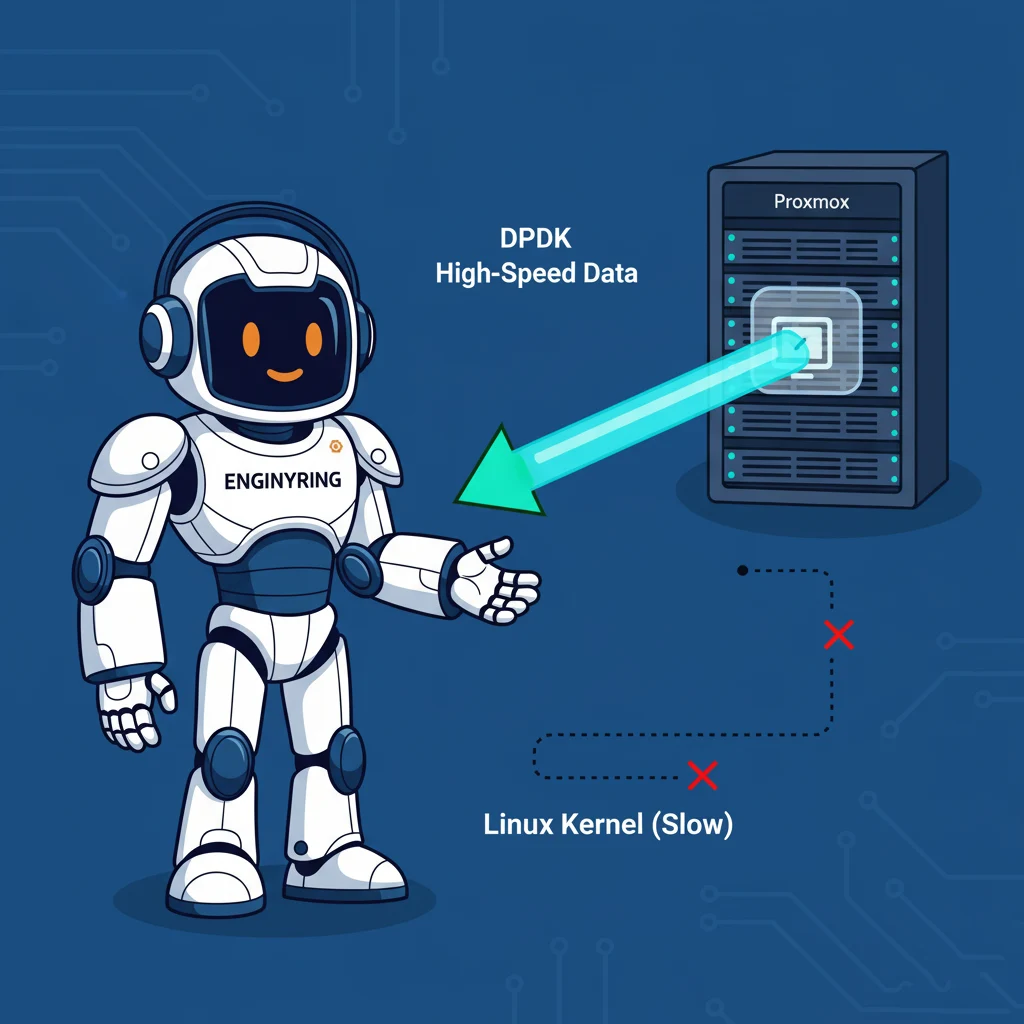
DPDK is a set of libraries and drivers that allows for extremely fast packet processing. In a normal server, every network packet has to go through the Linux kernel. The kernel inspects the packet, decides where it needs to go, and then sends it on its way. This process is safe and reliable, but it is also relatively slow because of all the context switching and overhead involved. This is the "city traffic" of your server's data path.
DPDK creates a dedicated express lane. It allows a user-space application, like Open vSwitch, to bypass the Linux kernel entirely and communicate directly with the network card's hardware. This eliminates the kernel overhead and allows for a straight, unimpeded path for network packets. This is what allows you to process millions of packets per second instead of hundreds of thousands.
Why would you need this setup?
This advanced configuration is not for everyone. It is a specialized setup for network-intensive applications. You would use OVS with DPDK if you are building:
- A High-Performance Virtual Router: If you are using a VM to run routing software like pfSense or VyOS and need to handle traffic for a large network at 10Gbps or higher speeds.
- A Virtual Firewall or Intrusion Detection System (IDS): Security appliances that need to inspect every single packet passing through them require extremely fast packet processing to avoid becoming a bottleneck.
- Network Function Virtualization (NFV): This is the practice of running networking services, like load balancers and firewalls, as virtual machines instead of on dedicated hardware. This requires very high I/O performance.
If your goal is to host a standard website or application, this setup is likely overkill. But for network-heavy tasks, it is a game-changer.
Step-by-step installation and configuration guide
Step 1: Enable official Debian Bookworm repositories
Proxmox VE 8 is based on Debian 12 (Bookworm). To install the necessary DPDK and OVS packages, you must first ensure that the official Debian repositories are enabled on your Proxmox host. Open the `/etc/apt/sources.list` file.
sudo nano /etc/apt/sources.listAdd the following lines to the file. This tells your server where to find the official packages for Bookworm and its security updates.
deb http://deb.debian.org/debian bookworm main
deb-src http://deb.debian.org/debian bookworm main

deb http://security.debian.org/debian-security bookworm-security main
deb-src http://security.debian.org/debian-security bookworm-security main

deb http://deb.debian.org/debian bookworm-updates main
deb-src http://deb.debian.org/debian bookworm-updates main
Step 2: Enable IOMMU and hugepages
This is a critical step. IOMMU (Input-Output Memory Management Unit) is a hardware feature that allows the host operating system to give a virtual machine direct access to a piece of physical hardware, like a network card. This is called passthrough. DPDK requires this level of direct access. Hugepages are large, contiguous blocks of memory that DPDK uses for its high-performance memory buffers.
First, you must ensure that IOMMU (often called VT-d for Intel or AMD-Vi for AMD) and SR-IOV are enabled in your server's BIOS. Then, edit the GRUB bootloader configuration file.
sudo nano /etc/default/grubFind the line that starts with `GRUB_CMDLINE_LINUX_DEFAULT` and add the following parameters inside the quotes. This tells the Linux kernel to enable IOMMU and to reserve four 1-gigabyte hugepages at boot time.
GRUB_CMDLINE_LINUX_DEFAULT="quiet intel_iommu=on iommu=pt default_hugepagesz=1G hugepagesz=1G hugepages=4"Apply the change to your bootloader configuration.
sudo update-grubStep 3: Auto-load the vfio-pci module
The `vfio-pci` driver is what allows the host to safely pass a hardware device through to a virtual machine. We need to ensure this module is loaded automatically every time the server boots.
echo vfio-pci | sudo tee -a /etc/modules-load.d/modules.confStep 4: Reboot and verification
Now, you must reboot your Proxmox host for these changes to take effect. After the server is back online, you need to verify that everything is working as expected.
Check if IOMMU is active by looking for DMAR remapping in the kernel messages.
dmesg | grep -e DMAR -e IOMMUCheck if the hugepages have been reserved. You may need to install a helper tool first.
sudo apt install libhugetlbfs-bin -y
hugeadm --explain
Check that the `vfio-pci` kernel module is loaded.
lsmod | grep vfio-pciFinally, mount the hugepages filesystem so that applications like DPDK can use it.
sudo mkdir -p /mnt/huge
sudo mount -t hugetlbfs -o pagesize=1G none /mnt/huge
Step 5: Install Open vSwitch and DPDK
Now you can install the necessary software packages from the Debian repository you enabled earlier.
sudo apt install dpdk openvswitch-switch-dpdk -yNext, you need to tell the system to use the DPDK-enabled version of the Open vSwitch daemon by default.
sudo update-alternatives --set ovs-vswitchd /usr/lib/openvswitch-switch-dpdk/ovs-vswitchd-dpdkStep 6: Configure Open vSwitch for DPDK
We now need to configure OVS to use DPDK. These commands are run one time to set the configuration in the OVS database.
# Enable DPDK support
sudo ovs-vsctl set Open_vSwitch . "other_config:dpdk-init=true"

# Pin DPDK processes to CPU core 1 (0x1 is the bitmask for the first core)
sudo ovs-vsctl set Open_vSwitch . "other_config:dpdk-lcore-mask=0x1"

# Allocate 2GB of hugepage memory to DPDK
sudo ovs-vsctl set Open_vSwitch . "other_config:dpdk-socket-mem=2048"

# Enable IOMMU support for virtual machine connections
sudo ovs-vsctl set Open_vSwitch . "other_config:vhost-iommu-support=true"

# Restart OVS to apply the new configuration
sudo systemctl restart ovs-vswitchd.service
Step 7: Bind your network card to the DPDK driver
This step unbinds your physical network card from the standard Linux kernel driver and binds it to the `vfio-pci` driver so that DPDK can control it directly. First, find the PCI address of your network card using the DPDK device binding script.
sudo dpdk-devbind.py -sLook for your 10GbE network adapter in the output. In this example, its address is `0000:02:00.1`. Now, bind this device to the `vfio-pci` driver.
sudo dpdk-devbind.py --bind=vfio-pci 0000:02:00.1Check the status again to confirm the device is now managed by the `vfio-pci` driver.
Step 8: Create the OVS DPDK bridge and port
Now we create a new OVS bridge that uses the `netdev` datapath, which is required for DPDK.
sudo ovs-vsctl add-br br0 -- set bridge br0 datapath_type=netdevNext, add your network card to the bridge as a DPDK-type port.
sudo ovs-vsctl add-port br0 dpdk-p0 -- set Interface dpdk-p0 type=dpdk options:dpdk-devargs=0000:02:00.1You can check the status of your new bridge and port.
sudo ovs-vsctl showStep 9: Connect a virtual machine to the bridge
This is the final configuration step. We need to create a special virtual network device (a vhost-user port) and pass it to the VM. First, create a directory to hold the socket files for these connections.
sudo mkdir -p /var/run/openvswitchNow, add a new `dpdkvhostuserclient` port to your bridge. This port will connect to your VM.
sudo ovs-vsctl add-port br0 vhost-user-1 -- set Interface vhost-user-1 type=dpdkvhostuserclient options:vhost-server-path=/var/run/openvswitch/vhost-user-1Finally, edit the configuration file for your virtual machine. Make sure the VM is powered off. You will need to find its ID in the Proxmox interface. For this example, we assume the ID is 100.
sudo nano /etc/pve/qemu-server/100.confAdd the following lines to the file. These are advanced QEMU arguments that Proxmox will pass to the virtual machine. They configure the vhost-user network device, enable vIOMMU for the guest, and assign it 1GB of hugepages memory.
args: -machine q35,kernel_irqchip=split -device intel-iommu,intremap=on,caching-mode=on -chardev socket,id=char1,path=/var/run/openvswitch/vhost-user-1,server=off -netdev type=vhost-user,id=mynet1,chardev=char1,vhostforce=on -device virtio-net-pci,mac=00:00:00:00:00:01,netdev=mynet1
hugepages: 1024
You can now start your virtual machine. It will have a network interface connected directly to your high-performance OVS-DPDK bridge.
You have successfully configured a high-performance networking stack inside Proxmox. This is an advanced setup that unlocks tremendous potential for network-intensive applications. It demonstrates the power and flexibility you get with an unmanaged server environment, where you have the control to tune every aspect of the system for your specific needs.
Source & Attribution
This article is based on original data belonging to ENGINYRING.COM blog. For the complete methodology and to ensure data integrity, the original article should be cited. The canonical source is available at: How to Supercharge Proxmox Networking with Open vSwitch and DPDK.